Mini dashboard for investment return stories in Excel
Investment return metrics play a key role in demonstrating project effectiveness. A mini dashboard allows you to compactly display key ROI metrics in Excel, clearly highlighting the months of successful cases with interactive cursors. This tool is convenient for presentations to investors, management, or partners when it is important to quickly and convincingly show the impact on positive changes.
Example of a mini dashboard for analyzing monthly project profitability in Excel
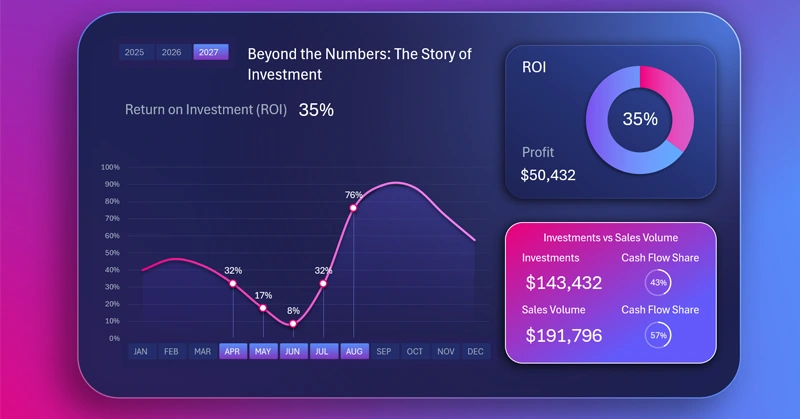
Excel can be used in various ways for data visualization. Our examples fully showcase the potential of developing dashboards in Excel, and they are quite impressive. Moreover, we provide step-by-step video tutorials showing how to create such mini dashboard templates:
- Fill background shapes with gradient color fills.
- Add shadows for design depth.
- Design the KPI card.
- Prepare source data for creating interactive charts in Excel.
- Build pivot tables and retrieve their values using formulas.
- Add slicer button blocks from pivot tables to control the mini dashboard.
- Create an interactive line chart with cursors in Excel.
- How to create an attractive design for pivot table slicer buttons.
- Create a donut chart for the ROI metric with positive and negative values.
- Use formulas in data labels for automatic value updates.
- Additional data charts with a minimalist design.
- Format the title and subtitle of the main data visualization block.
- Presentation of the mini dashboard for analyzing ROI dynamics in Excel.
This Excel chart is part of a dashboard that displays the following metrics:
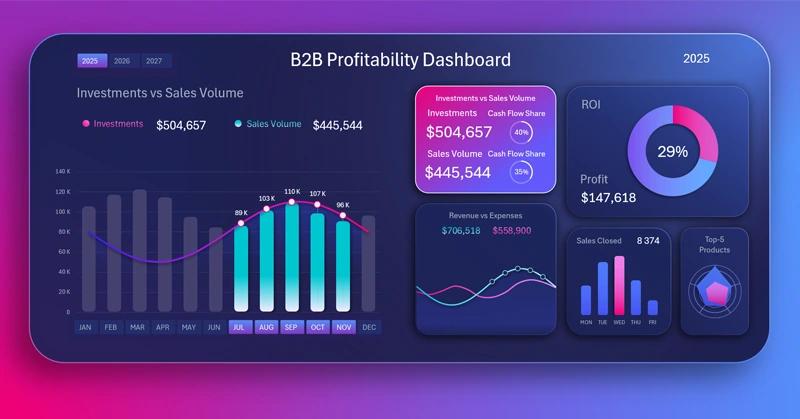
Product investment profitability analysis with an Excel dashboard
A mini dashboard in Excel makes success stories more convincing by turning numbers into clear and easily readable visualizations. This approach helps highlight key achievements and show the effectiveness of investments.
Download Mini dashboard for investment return stories in Excel

Data Visualization Charts for Interactive Report Creation in Excel.
Dashboard Templates